

When you press Return, Fastpad automatically matches the indentation of the previous line. If the line ends with {, (, [, or :, one extra level is added.
Typing {, [, (, ", or ' automatically inserts the matching closing character and places the cursor inside. If text is selected, the selection gets wrapped. Pressing Backspace over an empty pair removes both characters at once.
The status bar shows the current indent mode (Spaces or Tabs) and width. Click it to change settings, or go to View → Indent Settings… to pin per-language defaults that override automatic detection.
| Move line up | ⌥↑ |
| Move line down | ⌥↓ |
| Duplicate line | ⌥⇧↓ |
| Indent selection | ⌘] |
| Dedent selection | ⌘[ |
| Toggle line comment | ⌘/ |
| Jump to matching brace | ⇧⌘M |
Press ⌘D to expand the current selection to the word under the caret. Press again to add the next matching occurrence to the selection set (Sublime Text / VS Code style). Each subsequent press keeps adding the next match.
Fastpad supports multiple independent cursors so you can edit several places simultaneously.
All cursors accept the same keystrokes simultaneously — typing, deleting, indenting, and moving all apply to every cursor at once. Click anywhere without ⌘ to collapse back to a single cursor.
Hold ⌥ and drag the mouse vertically to create a rectangular block selection. Each line in the selected rectangle becomes an independent selection range, which is great for editing aligned columns of text (e.g. variable declarations or CSV data). After making a column selection, you can type to insert the same text on every selected line simultaneously.
Code folding lets you collapse large blocks to reduce visual clutter.
{…} pair on the current line and collapses everything inside to a blue pill showing the line count.⋯ N lines pill to restore the original text.Folded regions are automatically expanded before saving, so the file on disk always contains the full text.
Language is detected automatically from the file extension when a file is opened. You can override it at any time by clicking the language name in the status bar. Fastpad also highlights:
A vertical column guide is shown at column 80 by default for code files. Use View → Ruler Guide to change the column or disable it. Drag the guide line with the mouse to reposition it interactively.
Press ⌘F to show the find bar. Press ⌥⌘F to show it with the replace field expanded.
| Show find bar | ⌘F |
| Show find & replace | ⌥⌘F |
| Find next | ⌘GReturn |
| Find previous | ⇧⌘G |
| Dismiss find bar | Esc |
The match counter in the find bar shows how many results were found. When the document is very large, the count reflects only the visible range and updates as you scroll.
The Transform menu applies encoding, hashing, and formatting operations to the current selection — or the entire document if nothing is selected.
| Base64 — encode | ⌃⌘B |
| Base64 — decode | ⌃⇧⌘B |
| URL — encode / decode | |
| Hex — encode / decode | |
| SHA-256 hash (shown in status bar) | ⌃⌘H |
| JSON — format / pretty-print | ⌥⌘J |
| JSON — minify | ⌥⇧⌘J |
| Fold block at caret | ⌥⌘− |
The SHA-256 hash is not inserted into the document — it is displayed in the status bar for 10 seconds so you can copy it without modifying the file. URL and Hex conversions are available from the menu only.
The minimap is a scaled overview of the entire document shown as a 100 px panel on the right side of the editor. Each line is rendered as a thin bar colored to match its syntax tokens, giving you a visual fingerprint of the file's structure.
When editing a .md or .markdown file, you can open a live side-by-side rendered preview.
Supported Markdown features: ATX and setext headings, fenced and indented code blocks, blockquotes, ordered and unordered lists, tables, bold, italic, inline code, links, images, and strikethrough.
When editing a .html or .htm file, Fastpad renders a live preview alongside the editor.
The preview always reflects the version of the file on disk. Save with ⌘S to update it with your latest edits.
Split View opens a second editor pane side-by-side with the primary editor. The two panes are independent — they can show different files from the same window's tab collection.
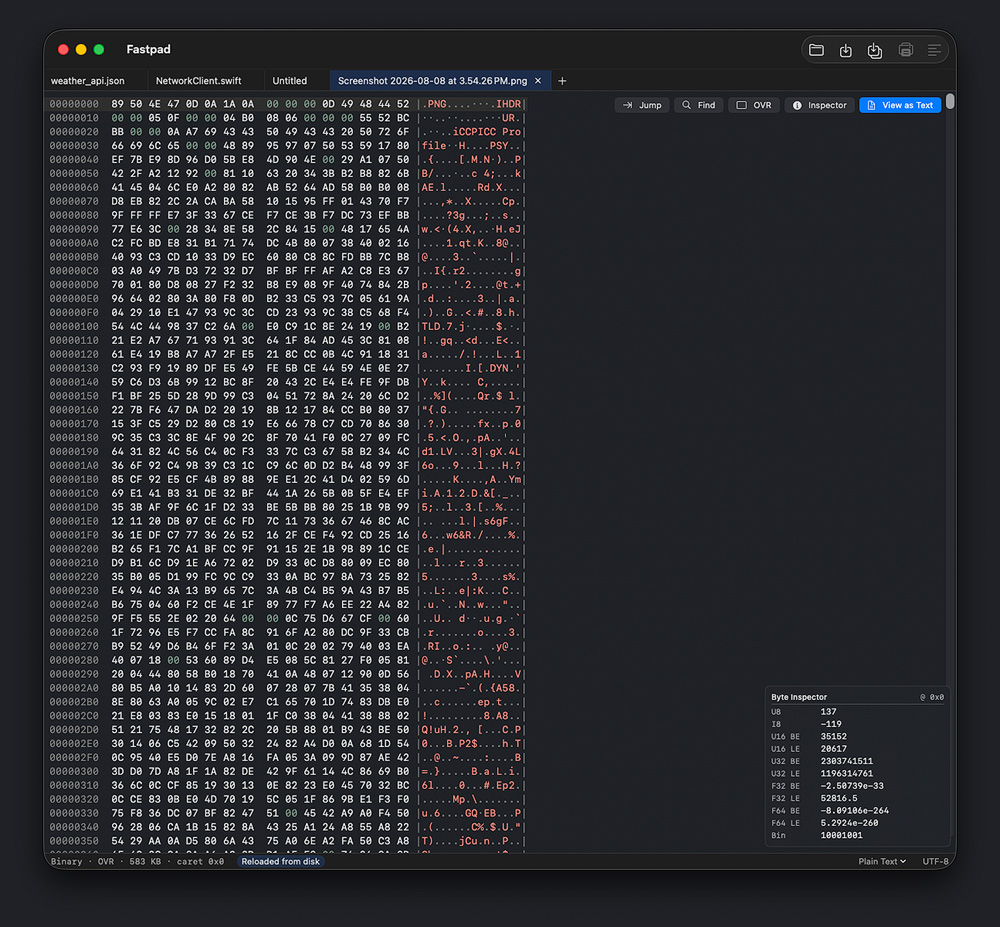
Binary files (any file containing NUL bytes or a high ratio of non-printable characters) are automatically opened in the Hex Viewer instead of the text editor. The Hex Viewer shows three columns: offset, hex bytes, and ASCII representation. Clicking in either hex or ASCII selects the corresponding byte in the other column.
| Jump to offset | ⌘L |
| Find hex / ASCII | ⌘F |
| Toggle insert / overwrite | Help |
The Byte Inspector panel (toggle with the Inspector toolbar button) shows the byte under the cursor decoded as Int8, UInt8, Int16/32/64 (little and big endian), Float32/64, and UTF-8. If a file is incorrectly detected as binary, click View as Text in the toolbar overlay to reopen it as plain text, bypassing the heuristic.
Fastpad automatically saves a recovery copy of every unsaved document every 30 seconds to~/Library/Application Support/Fastpad/Recovery/. If Fastpad quits unexpectedly, the next launch will detect any leftover recovery files and offer to restore them. You can choose to restore all of them or discard them.
Recovery files supplement normal saves — they are not a replacement. Always use ⌘S to save your work to its intended location.
Bookmarks mark specific lines for quick navigation. A small blue dot appears in the gutter next to every bookmarked line.
| Toggle bookmark on current line | ⇧⌘B |
| Jump to next bookmark | ⌥⌘B |
| Jump to previous bookmark | ⌥⇧⌘B |
| Clear all bookmarks | |
| Toggle bookmark (gutter click) |
| New tab | ⌘N |
| New window | ⌥⌘N |
| Open… | ⌘O |
| Save | ⌘S |
| Save As… | ⇧⌘S |
| Close tab | ⌘W |
| Print… | ⌘P |
| Find… | ⌘F |
| Find & Replace… | ⌥⌘F |
| Go to Line… | ⌘L |
| Select next occurrence | ⌘D |
| Toggle line comment | ⌘/ |
| Indent | ⌘] |
| Dedent | ⌘[ |
| Move line up | ⌥↑ |
| Move line down | ⌥↓ |
| Duplicate line | ⌥⇧↓ |
| Jump to matching brace | ⇧⌘M |
| Reformat document | ⌥⇧⌘F |
| Insert timestamp | ⌃⌘T |
| Insert UUID | ⌃⌘U |
| Sort lines ascending | ⌃⌘S |
| Sort lines descending | ⌃⇧⌘S |
| Toggle bookmark | ⇧⌘B |
| Next bookmark | ⌥⌘B |
| Previous bookmark | ⌥⇧⌘B |
| Base64 encode | ⌃⌘B |
| Base64 decode | ⌃⇧⌘B |
| SHA-256 hash | ⌃⌘H |
| JSON format | ⌥⌘J |
| JSON minify | ⌥⇧⌘J |
| Fold block | ⌥⌘− |
| Toggle word wrap | ⌥⌘L |
| Show invisible characters | ⇧⌘I |
| Increase font size | ⌘+ |
| Decrease font size | ⌘− |
| Reset font size | ⌘0 |
| Show minimap | ⌃⌘M |
| Markdown / HTML preview | ⌥⌘P |
| Toggle split view | ⌥⌘\ |
| Toggle ruler guide | ⌃⌘R |
| Next tab | ⇧⌘]⌃Tab |
| Previous tab | ⇧⌘[⌃⇧Tab |
| Move tab right | ⌥⌘] |
| Move tab left | ⌥⌘[ |
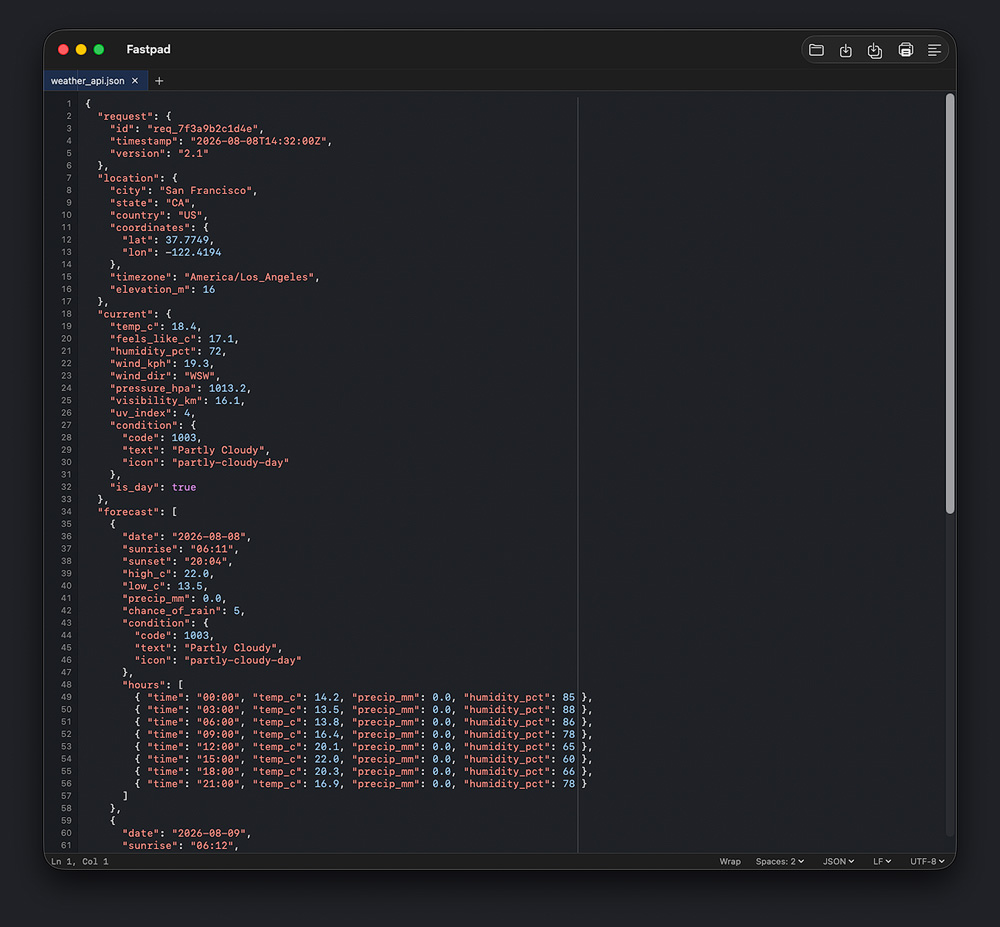
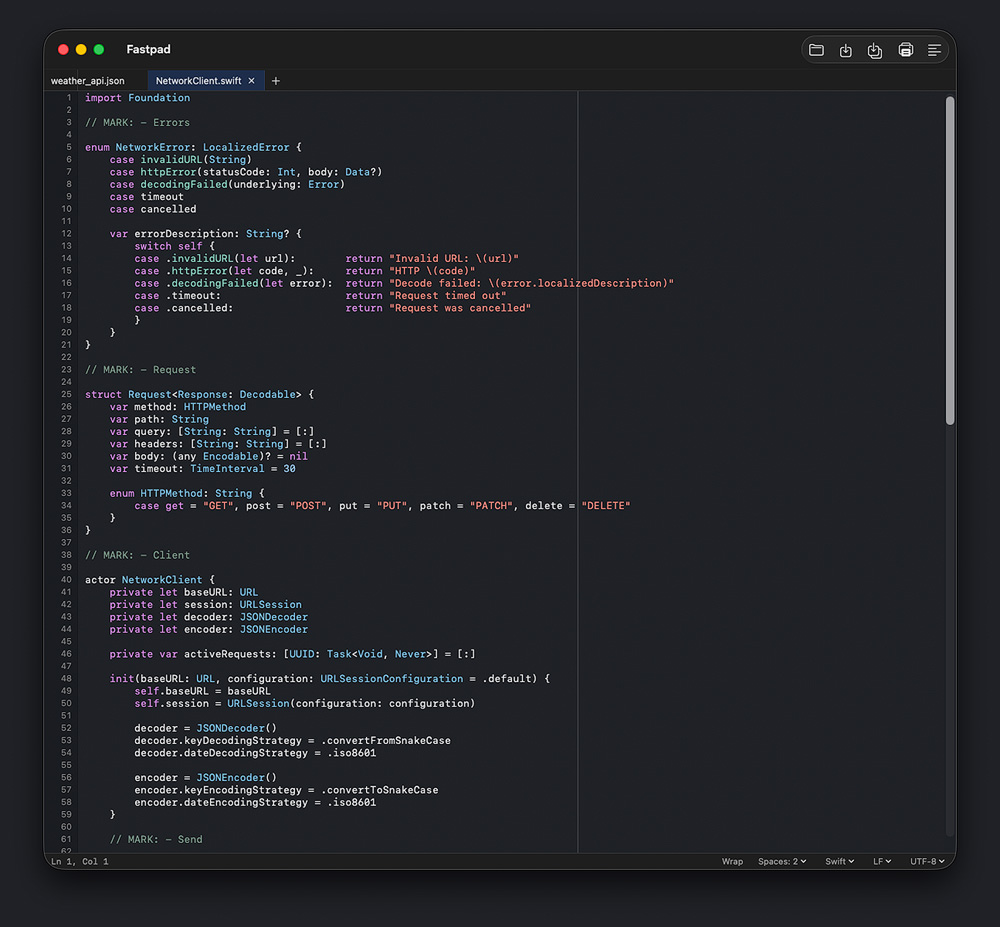
Fastpad detects language from the file extension and applies full syntax highlighting with language-aware features (comment toggling, brace matching, smart indent).
Languages with line-comment toggling (⌘/): Swift, JavaScript, TypeScript, C, C++, Objective-C, Go, Rust, Python, Shell, YAML, Ruby.
~/Library/Application Support/Fastpad/Recovery/. They are managed entirely on your device and are never transmitted anywhere.